 Orvus
OrvusThe journal
What should a marketing dashboard look like?
A practical dashboard layout that keeps outcomes, acquisition scopes, reporting dates and missing data clear enough to support weekly decisions.

A useful marketing dashboard is a single page that answers the decisions your team makes each week, with a compact set of outcome KPIs, trends and breakdowns. Keep paid and organic separate, align dates across sources, and label freshness so people know when data is delayed.
A small-business dashboard layout that works
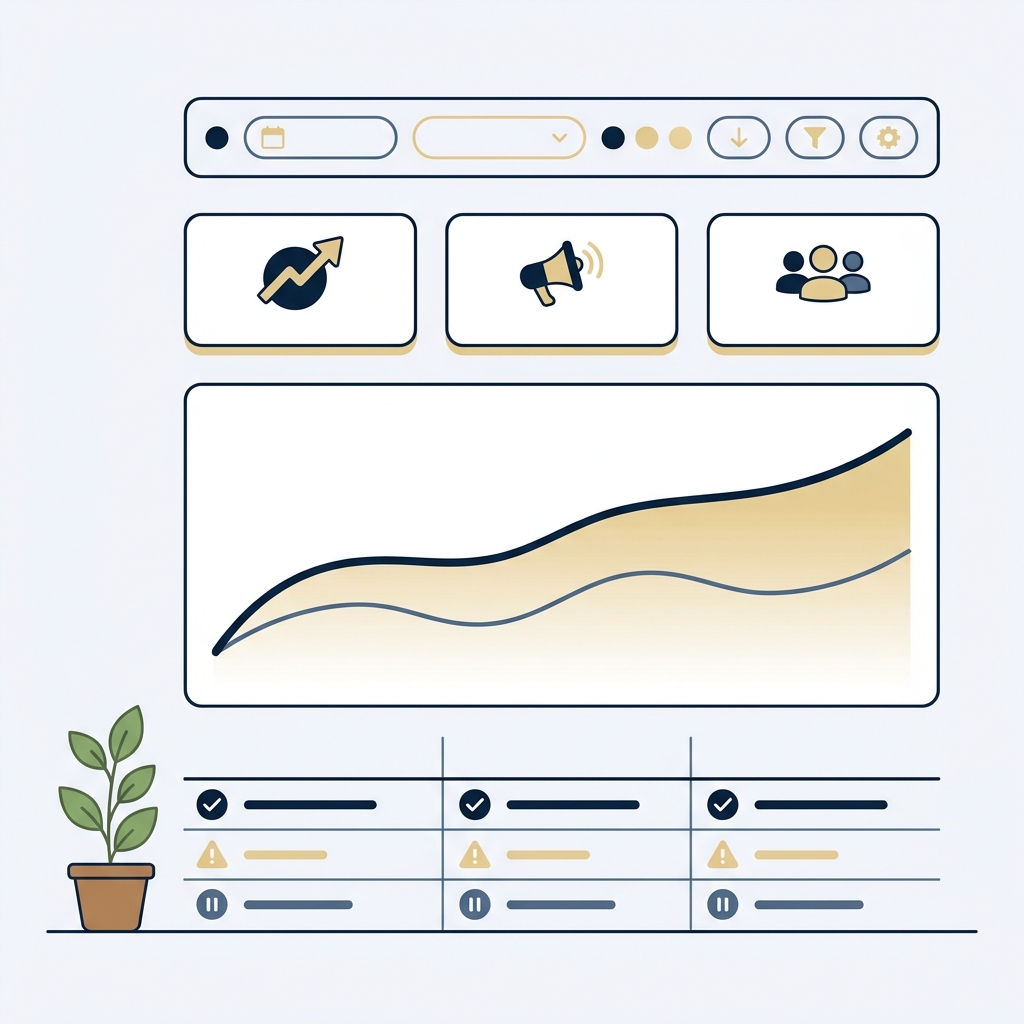
Use a simple top-to-bottom layout that supports weekly decisions:
- Top row scorecards: outcomes first (orders or qualified leads), then supporting KPIs such as Google organic clicks, sessions, key events and cost-based KPIs if you run paid.
- Trends: a 6-12 week time series for each primary KPI to show momentum and seasonality.
- Breakdowns: a table by channel with paid and organic in distinct sections, then a campaign table and a landing page table.
- Filter bar: date range, device and country, plus channel and campaign. Country and device filters are especially helpful when reviewing Search performance side by side with on-site metrics (Google Search Central).

Metric definitions and guardrails
- Search Console metrics (pre-click):
- Clicks: the number of times people clicked your site in Google Search results.
- Impressions: the number of times your site appeared in Google Search results.
- CTR: clicks divided by impressions (Google Search Central).
- Google Analytics 4 (on-site):
- Sessions: periods of user interaction with your site (Google Search Central).
- Engagement rate: the percentage of sessions GA4 classifies as engaged; keep the property’s configured definition consistent in comparisons (Google Search Central).
- Key events: the events you mark as important conversions in GA4 (Google Analytics Help).
- Acquisition scopes: GA4 labels acquisition by First user, Session or Event scopes; do not mix these scopes in one KPI or you will confuse attribution (Google Analytics Help).
Data will not match between Google Search Console and GA4 because they measure different parts of the journey with different metrics and attribution. Treat Search Console as the source of truth for Search performance before the click, and GA4 as the source of truth for behavior on your site (Google Search Central).
Practical rule: do not sum Google Ads clicks with Search Console clicks, or sum Search Console clicks with GA4 sessions. Show them side by side with clear labels, and tie each to outcomes separately.
Align dates, time zones and freshness
- Use one shared date control across all tiles. If you compare week over week, apply the same range to every chart and table.
- Label freshness per source. Search Console data can be delayed by a couple of days, and many templates default to “last 28 days,” which you may adjust for your cadence (Google Search Central).
- Note time zones. GA4 lets you set a property time zone; Search Console uses Pacific Time by default, which can create apparent day-to-day mismatches if you don’t account for it (Google Search Central).
Unavailable versus zero
Make missing data obvious. If a source has not returned data yet, show “No data yet” or gray the tile instead of showing 0. This respects data completeness and timeliness, and avoids misleading readers. Add short notes when a known delay, system change or filter explains a gap (UK Government Data Quality Framework).
Paid, organic and outcomes kept separate
- Organic Search panel:
- Top: Search Console clicks, impressions and CTR, with device and country filters.
- Middle: GA4 sessions and engagement rate filtered to google/organic, plus key events attributed to those sessions.
- Bottom: landing pages table with clicks (SC) next to sessions and key events (GA4) for the same date range. This respects that impressions/clicks are Search Console data while sessions/key events are GA4 (Google Search Central).
- Paid panel:
- Keep spend and ad clicks from ad platforms separate from organic. Use GA4 session-scoped acquisition to view on-site outcomes by campaign without mixing them into Search Console metrics (Google Analytics Help).
If you are configuring GA4 and Search Console for the first time, our GA4 and Search Console playbook walks through connection and basic validation.
One practical decision this dashboard should support
Decision: Should we adjust focus to organic content or keep pushing paid this week?
- Check the 4-week trend of Search Console clicks and CTR. If clicks are rising while CTR is steady, identify which queries and pages are driving the lift (Google Search Central).
- On the same date range, review GA4 sessions and key events filtered to google/organic to confirm that on-site outcomes are keeping pace with the pre-click lift (Google Search Central).
- Separately, review your paid campaigns’ on-site outcomes using GA4 session-scoped acquisition by campaign. Do not combine counts with organic; compare outcome rates side by side (Google Analytics Help).
- Align dates and note freshness. If Search Console is two days behind, shift the comparison window accordingly to avoid false negatives (Google Search Central).
- Act: investigate the pages or campaigns behind the change before adjusting budgets. A short-term trend alone does not establish which channel deserves more investment.
Publish-ready marketing dashboard checklist
Short FAQs
Should I combine Search Console clicks and GA4 sessions into one KPI?
No. They measure different things and won’t match; show them side by side with clear labels (Google Search Central).
Why do GA4 acquisition numbers differ between tiles?
Check the scope. First user, Session and Event scopes attribute differently; keep each KPI consistent to one scope (Google Analytics Help).